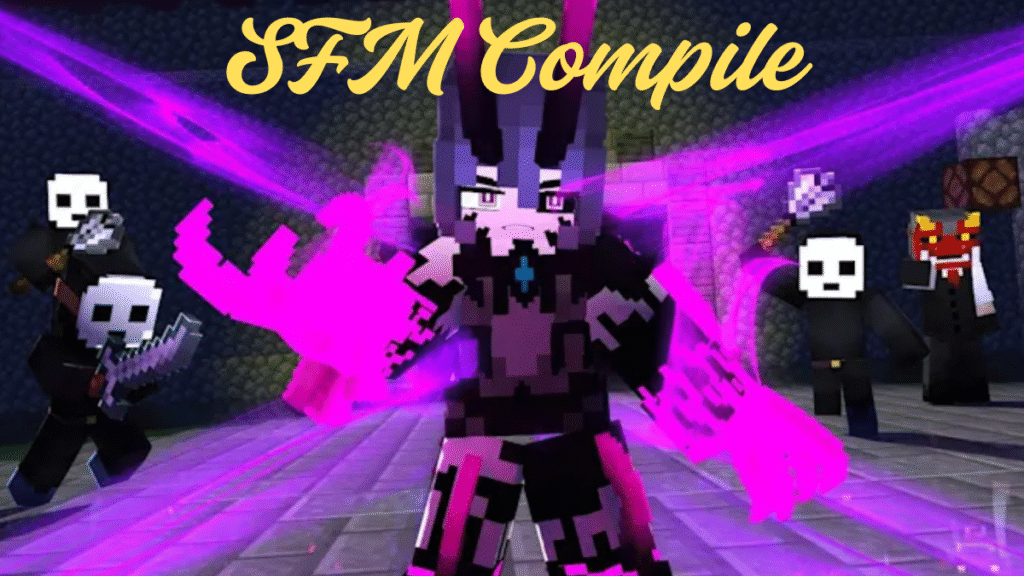
Introduction: Turning Game Assets into Movie Magic
Ever watched a fan-made cinematic using Team Fortress 2, Half-Life, or Overwatch characters and thought, “How do they make this look like a Hollywood film?”
Welcome to the world of Source Filmmaker (SFM) — Valve’s powerful, free animation tool that turns the Source Engine into a virtual movie studio. But while creating animation in SFM is relatively beginner-friendly, compiling and rendering professional-quality results takes skill, patience, and technical understanding.
Whether you’re a budding animator, YouTube creator, or game developer looking to elevate your cinematic storytelling, mastering the SFM compile process is essential. This guide will take you step-by-step through everything you need to know to render cinematic animations like a pro — from lighting and camera tricks to encoding, exporting, and color grading.
1. Understanding SFM: The Engine Behind Cinematic Gold
Source Filmmaker is built directly into Valve’s Source Engine — the same framework used for games like Half-Life 2, Portal 2, and Team Fortress 2. That means everything you see in SFM — lighting, shadows, textures, physics — operates in real time, using the same rendering systems that make those games look great.
SFM allows animators to:
- Import models and maps from any Source Engine game.
- Animate characters, props, and cameras in a timeline-based interface.
- Add lights, post-processing effects, and particles for cinematic realism.
- Render the final project into a playable video sequence.
However, the SFM Compile phase — converting your animation into a high-quality, final video — is where many creators struggle. This is where true professionalism is achieved.
2. The Heart of SFM: The Timeline and Shot System
Before compiling, it’s crucial to understand how SFM structures animation.
Sessions, Shots, and Elements
Every project in SFM is a session, containing multiple shots, and within those shots are your animation elements — models, lights, cameras, and sound.
- Sessions: Your full project or “film.”
- Shots: Separate clips or scenes on your timeline.
- Elements: The components you manipulate.
This layered workflow allows you to treat SFM like a film editor — planning shots individually, then combining them during SFM Compile for a coherent, cinematic story.
3. Preparing Your Scene for Compilation
Before you hit “render,” your scene must be optimized for both performance and visual quality.
Step 1: Organize Assets
Keep your models, textures, and sounds in logical folders. Broken file paths cause missing textures (the dreaded pink-and-black checkerboard).
Step 2: Manage Lighting
Lighting is what separates amateur animation from cinematic brilliance.
- Use three-point lighting (key, fill, and rim lights) for characters.
- Add volumetric lights or fog for atmosphere.
- Use low-intensity, warm lights for depth and realism.
- Avoid overexposure — cinematic lighting is subtle.
Step 3: Check Camera Settings
Experiment with:
- Depth of Field (DoF) for focus realism.
- Motion Blur to simulate natural movement.
- Field of View (FOV) — lower values feel more “filmic.”
Use cinematic aspect ratios like 2.35:1 for that widescreen, movie feel.
4. Rendering Methods: Understanding SFM’s Output Options
When compiling, SFM offers multiple rendering modes. The choice you make affects everything — from quality to file size to post-production potential.
Render Modes Overview
- Image Sequence (.TGA or .PNG)
- Best quality (lossless).
- Suitable for editing and post-color grading.
- Can be converted into a video later using software like Premiere Pro or DaVinci Resolve.
- Video File (.AVI)
- Faster but lower quality.
- Often causes compression artifacts.
- Risk of dropped frames on complex projects.
- Poster Rendering
- For still frames or thumbnails.
Pro Tip: Always render as an image sequence. It’s slower but preserves every pixel of your hard work.
5. Advanced SFM Compile Settings: Getting Cinematic Quality
To “master” the SFM Compile, you need to go beyond default settings. In the “Render Settings” menu, you’ll find powerful tools to control your final output.
A. Super Sampling Anti-Aliasing (SSAA)
Increases the number of samples per pixel to smooth jagged edges.
Set SSAA to 16x or higher for cinematic shots, though it will increase render time significantly.
B. Motion Blur and Depth of Field
Enable both for realistic camera behavior. Motion blur adds smoothness to fast movements, while DoF emphasizes focus and depth.
C. Ambient Occlusion
Adds contact shadows where objects meet. Makes scenes feel grounded and physically accurate.
D. Shadow Filtering and Quality
Increase to “High” for clean, detailed shadows without flickering.
E. Color Correction LUTs
Import LUTs (Look-Up Tables) for stylized film color grading right inside SFM. For instance, apply a “Cinematic Teal & Orange” LUT for that blockbuster tone.
6. Optimization: How to Prevent Crashes and Long Renders
SFM is powerful, but it’s also temperamental — especially on large projects. Here’s how to ensure smooth compiling.
Reduce Model Complexity
Avoid using unnecessarily high-poly models. The Source Engine isn’t designed for modern 4K film-level meshes.
Use LODs (Level of Detail)
Replace background elements with lower-resolution versions. Your audience won’t notice, but your render speed will thank you.
Split the Scene
Instead of rendering a 5-minute animation in one go, break it into shots and SFM Compile them separately. This avoids memory overloads.
Disable Unused Lights and Effects
Too many dynamic lights or particle systems can cause lag or flicker during SFM Compile.
Backup Frequently
SFM can crash unexpectedly — use the “Save Incremental” option to version your progress.
7. Rendering Image Sequences: Step-by-Step
Rendering an image sequence gives you maximum control and quality. Here’s the process:
- Go to File → Export → Movie.
- Under “File Type,” choose Image Sequence (TGA or PNG).
- Select your resolution (1920×1080 or 4K for ultra-quality).
- Choose your frame rate — 24fps for film look, 30fps for smoother animation.
- Enable “Render Depth of Field” and “Motion Blur.”
- Choose your output directory and click Render.
Once complete, you’ll have hundreds (or thousands) of still frames that can be assembled into a video later.
8. Post-Processing: From Raw Frames to Cinematic Masterpiece
After rendering your image sequence, it’s time to SFM Compile and polish in an external editor.
Assembling Your Frames
Import your image sequence into:
- Adobe Premiere Pro
- DaVinci Resolve
- After Effects
- Blender’s Video Sequencer
Set your frame rate to match your render (e.g., 24fps) and sync your audio.
Color Grading
This step transforms your animation from “game footage” to “cinema-quality film.”
- Use contrast and exposure curves for mood.
- Apply cinematic LUTs (like Kodak 2393 or Arri Alexa presets).
- Adjust color temperature — warm for romance, cool for sci-fi.
- Add film grain subtly for texture.
Compositing and VFX
Want to make your animation feel Hollywood-level? Add:
- Lens flares
- Glows
- Dust or fog overlays
- Camera shake
- Letterboxing (black bars) for cinematic framing.
Tip: Keep effects tasteful. The goal is immersion, not distraction.
9. Audio and Sound Design
Sound is half the cinematic experience. Even with stunning visuals, poor audio can ruin immersion.
In-SFM Audio Editing
You can import and sync audio tracks directly in SFM, but professionals prefer doing final sound design in a DAW (Digital Audio Workstation) like Audacity, FL Studio, or Reaper.
Best Practices for Sound:
- Use ambient tracks to build mood.
- Layer foley effects (footsteps, clothes, wind).
- Sync dialogue perfectly — lip-sync tools in SFM can help, but refine manually.
- Add a cinematic soundtrack with proper mixing — music should enhance, not overpower.
10. Rendering for YouTube, Film, or Festival Submission
Once your post-processing is complete, it’s time to export your final movie.
Recommended Video Settings:
- Resolution: 1920×1080 or 3840×2160 (4K)
- Frame Rate: 24fps (cinematic) or 30fps (smooth)
- Codec: H.264 or H.265
- Bitrate: 15–50 Mbps for HD, 100+ Mbps for 4K
- Audio: AAC, 48kHz, 320kbps
If your final project is destined for YouTube, render in MP4 (H.264) with YouTube’s recommended bitrate to prevent compression issues.
11. Lighting Techniques for Cinematic Realism
Lighting can elevate your animation from “fan film” to “film festival-worthy.” In SFM, every light is an opportunity to sculpt your scene.
Key Lighting Tips:
- Use soft light with wide cones for natural looks.
- Color-grade lights — warm orange for sunset tones, blue for night scenes.
- Add volumetric fog to catch beams of light.
- Use rim lighting behind characters to separate them from the background.
Pro Cinematographer Tip: Study real film lighting setups. Replicate the mood of your favorite movies shot-by-shot to train your eye.
12. Mastering Cinematic Camera Movement
Cameras in SFM behave like physical ones — with focus, aperture, lens length, and shake options. Great camera work transforms even simple animations.
Key Camera Tricks:
- Dolly shots: Smooth forward/backward motion (use spline curves).
- Orbit shots: Circle the character for dynamic energy.
- Handheld camera simulation: Add subtle shake for realism.
- Rack focus: Shift focus between foreground and background for drama.
Use the Graph Editor in SFM to fine-tune camera motion curves. Smooth easing in/out avoids robotic movement.
13. Professional Workflow Tips for SFM Artists
To truly “master” SFM compiling, you need a professional workflow.
A. Plan Your Shots Like a Filmmaker
Sketch storyboards. Plan your lighting and camera movement before animating. Treat SFM like a real movie set.
B. Use Reference Footage
Study scenes from films or animations. Break down how they use timing, pacing, and color.
C. Keep Renders Modular
Render individual elements (backgrounds, effects, characters) separately if possible. This makes fixing mistakes easier.
D. Backup and Archive
SFM files can break unexpectedly. Always keep backups of your session and exports.
E. Optimize Render Time
Use batch rendering overnight and close other programs. Rendering is CPU-heavy — the fewer distractions, the faster it goes.
14. Troubleshooting Common SFM Compile Issues
Even pros hit snags during compile. Here’s how to fix the most common ones:
| Issue | Possible Cause | Fix |
|---|---|---|
| Render stops mid-way | Memory overload | Split scene into shorter shots |
| Black screen output | Camera not active | Set correct camera track |
| Missing textures | Missing materials | Verify model paths and re-import |
| Flickering shadows | Overlapping lights | Reduce light count or adjust distance |
| Audio out of sync | Frame rate mismatch | Match timeline FPS to export settings |
Pro Tip: Always test-render a 5-second preview before committing to full compile.
15. Going Beyond SFM: Integrating Blender, Unreal, or After Effects
SFM is powerful, but you can push your visuals further by combining it with other software.
- Blender: Import SFM models for advanced rendering with Cycles or Eevee.
- Unreal Engine: Use SFM animation as reference, then re-create shots with ray tracing.
- After Effects: Add dynamic titles, motion graphics, and cinematic effects.
Many SFM professionals use hybrid workflows — building animation in SFM, then finishing visuals in Blender or Unreal for higher fidelity.
Conclusion: Your Journey to Cinematic Mastery
Learning to compile SFM animations like a pro is more than just technical skill — it’s an art form that blends creativity, patience, and film sense. Every shot you render teaches you something new about storytelling, lighting, and design.
Remember: even the best animators started with choppy renders and flickering shadows. Mastery comes through iteration — render, refine, repeat.
By understanding the SFM compile process — from preparation and lighting to rendering and post-production — you’ll unlock the ability to tell breathtaking stories that look and feel cinematic. Whether your goal is a viral YouTube short, a fan film, or a portfolio piece, your journey to animation excellence begins here.
So fire up Source Filmmaker, plan your shots, set your lights — and create your masterpiece. Because the next viral cinematic could have your name in the credits.